
AuctionNow Guide
McGrath Estate Agents
Steps To Guide You
1. Create a Zoom meeting and get the Meeting ID (w/ passcode).
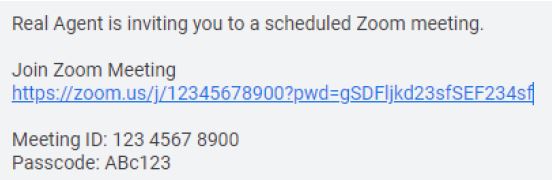
As the agent, create the Zoom meeting with your own account. Ensure to get the require information such as the Meeting ID, Passcode and link to join the Zoom meeting, below is a sample on how it looks:
2. Access the auction/property in AuctionNow
Under the Manage Auction tab, click the Broadcast Message button.
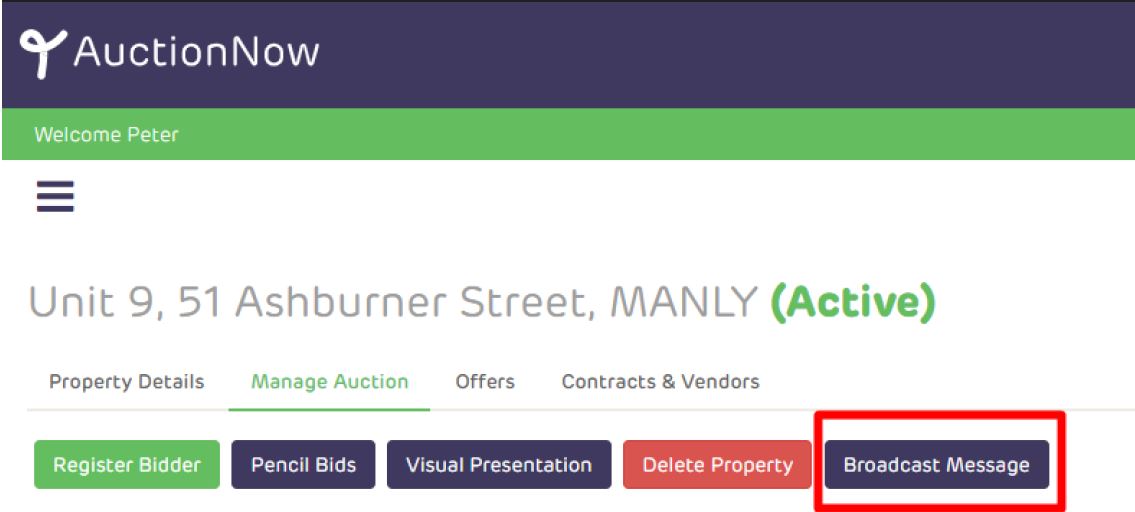
The Broadcast Message button will show a new window where you can enter the message you want to send to target recipients.
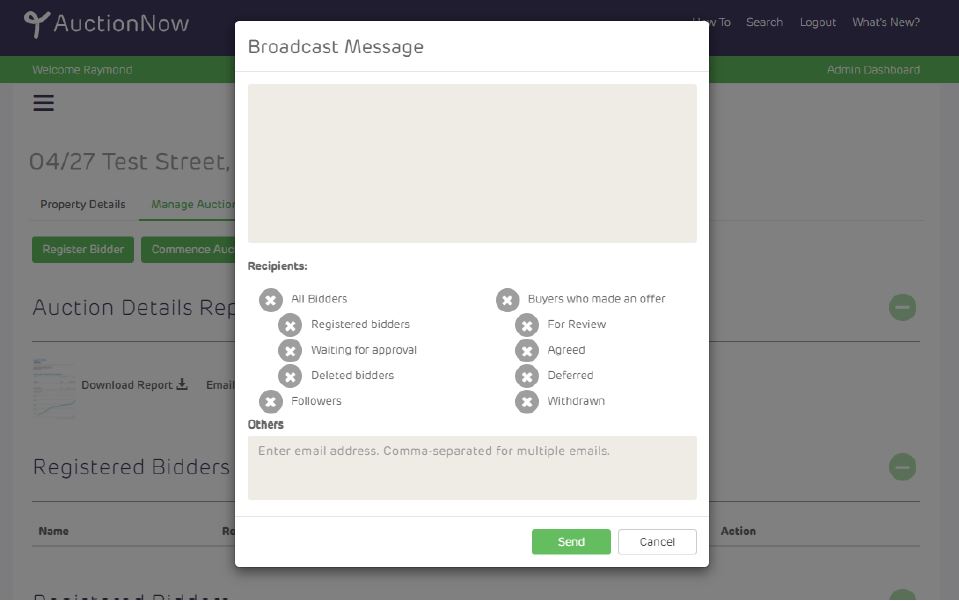
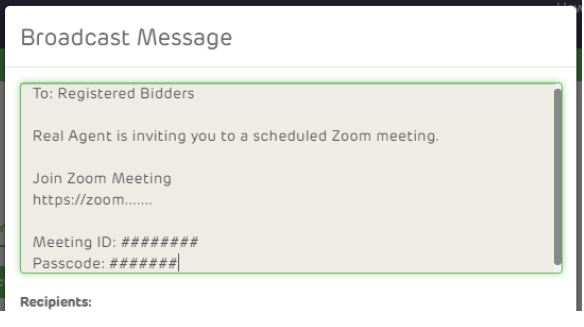
Write your message to your intended recipients then include the Meeting ID (w/passcode) in the message.
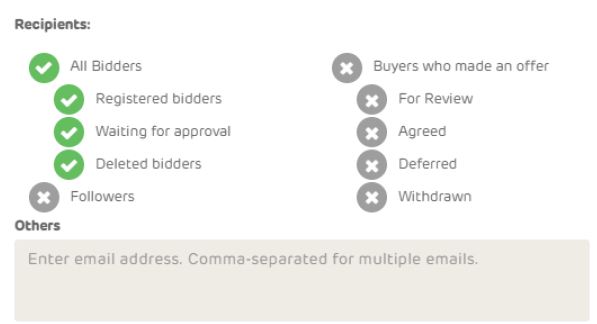
You can also select the intended recipients on who you want to invite in the Zoom Meeting.
Ideally you invite the All Bidders to join the meeting.
You can optionally enter specific email address as you needed under the "Others" section.
3. On the Auction Day, Setup your devices
Prior to the start of the auction, ensure to spend time to setup your devices for the livestream. You will need your mobile phone or a tablet to run the AuctionNow mobile app (ensure you have downloaded this in Google Play or Apple App Store). You may need a tripod to dock your mobile device before you start the auction. You can focus the camera to where the Auctioneer will be located.
Next, prepare your device for the Zoom Meeting. Ideally this is a laptop with a webcam. You will need the video to stream live and/or screen share the Visual Presentation of the property in Zoom. You can choose to focus the camera to the Auctioneer or the in room bidders (if any) while sharing the Visual Presentation to the Zoom attendees.
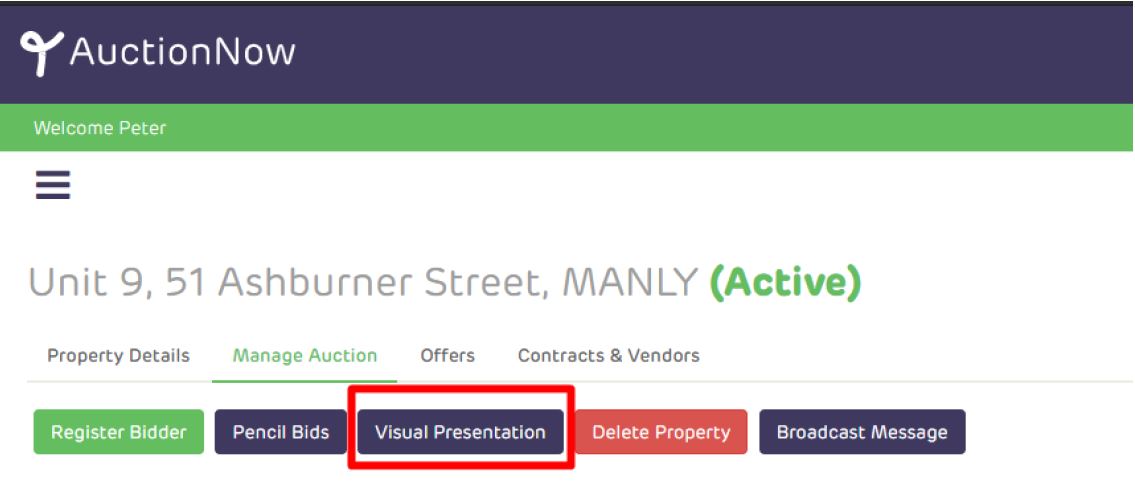
Access AuctionNow and go to the Manage Auction tab and click the Visual Presentation button.
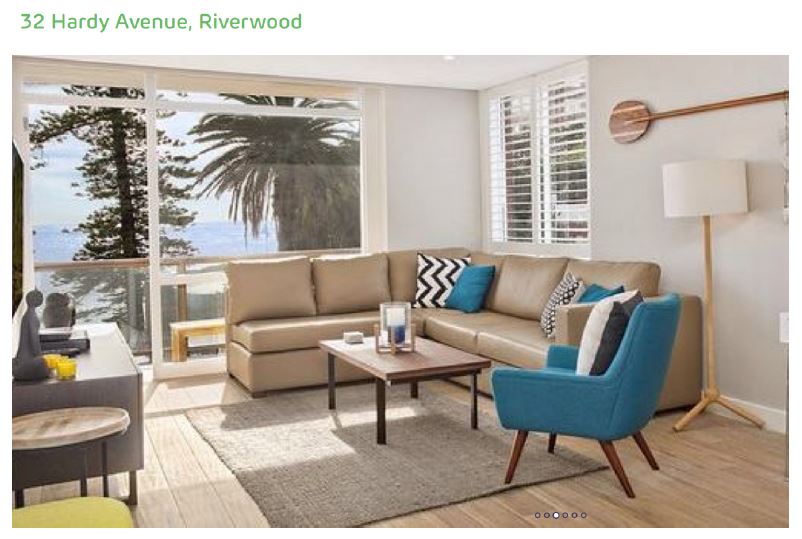
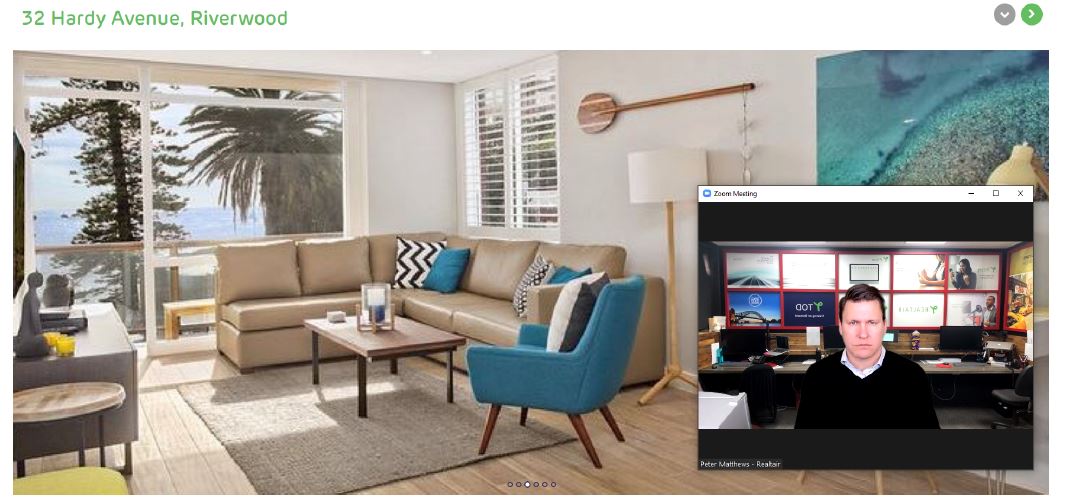
This will show a presentation view of the property images that you can screen share in your Zoom Meeting. EXAMPLE:
4. Test your devices
AuctionNow Mobile App:
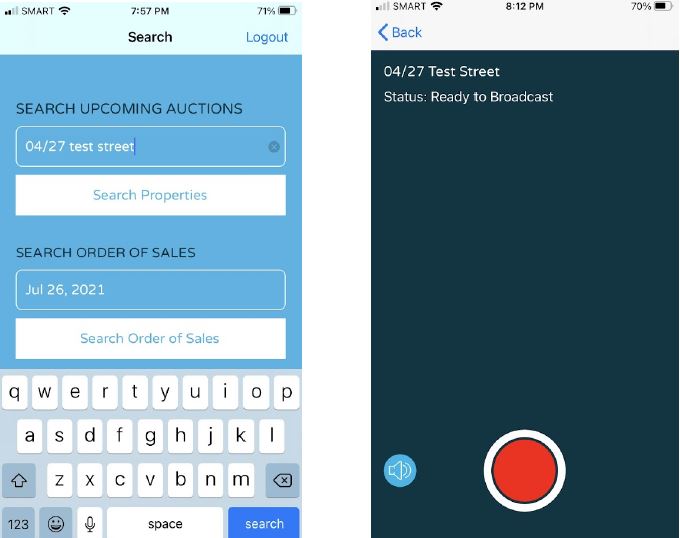
Search for the property under Search Upcoming Auctions. Alternatively, search for the Auction Date if the property is under an Order of Sales.
Agents can broadcast the video from the mobile app to view the livestream prior to preview before the commencement of the auction.
Zoom Meeting
Sign into your Zoom account and join the Zoom Meeting you have setup. Verify if the video works.
Verify if screen sharing works and share the Visual Presentation prepared in step 3.
To view more buyers on the Zoom, drag the horizontal bar between the shared image and the Buyers to expand the number of Buyers visible in one screen.
5. Ready to Commence Auction
Now that you have setup your devices and tested that video broadcasts work, You can now commence your auction to allow your registered bidders to join the livestream in AuctionNow.
You can also start accepting attendees in your Zoom Meeting and start the auction.
There are two alternatives to Bidding
1. As a best practice, the agent or auctioneer can do a test bidding for each registered bidder to confirm they are online and can submit their bids prior to the start of the Auction via the Keypad below. They can do this in the Pencil Bid page to receive the test bids and reject the test bids once verified.
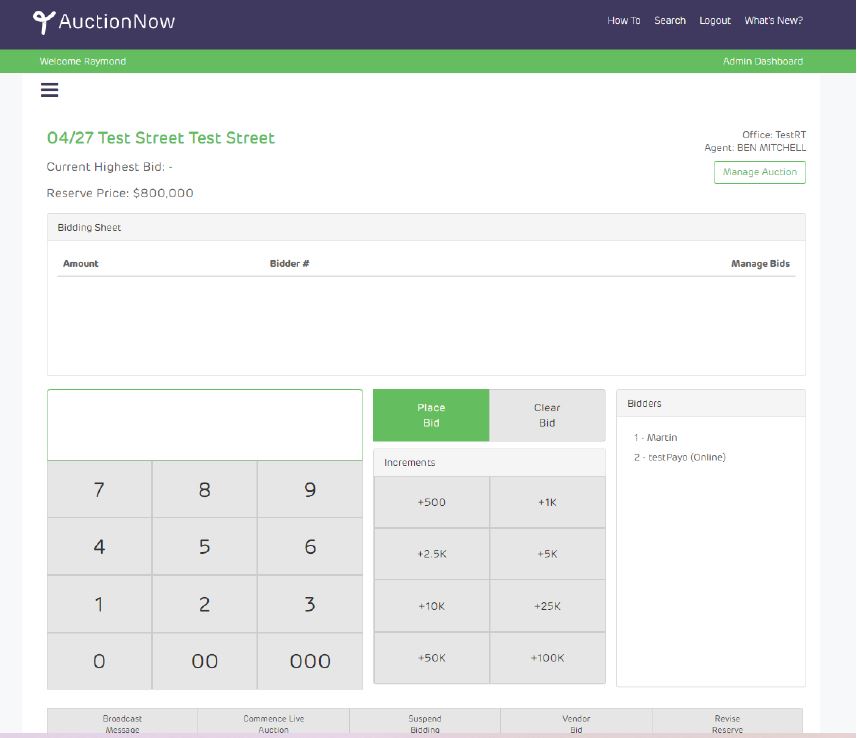
2. An alternative to Buyers Bidding on the Keypad above, is for the Buyers simply to raise their hand and communicate their bid to the Auctioneer. The Penciller can then enter the bid and select the Bidder from the AuctionNow keypad to confirm the bid.
The Bids will appear on Visual Presentation in the top left corner as the bids are placed and accepted.
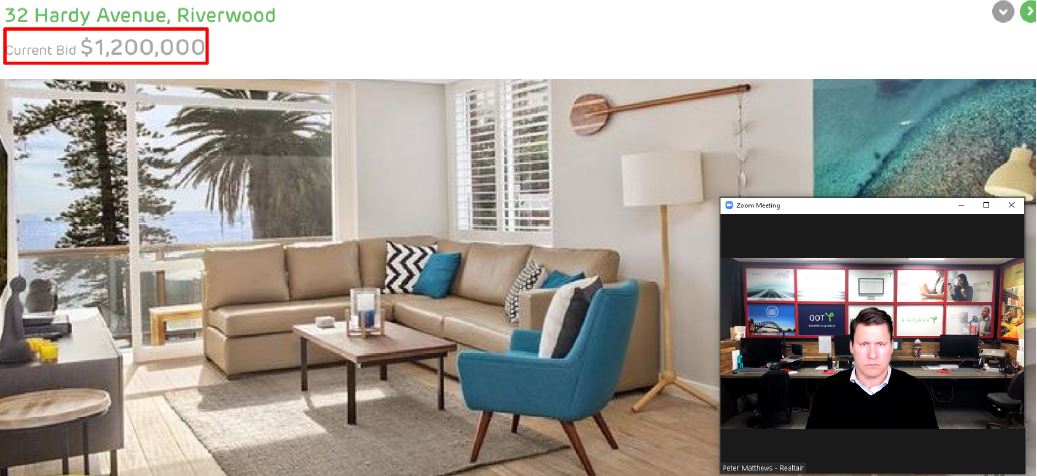
You are now be all set to facilitate the auction and collect bids! Enjoy the auction!
AuctionNow | Exchange of Contracts
After auction concludes ensure that result is ‘Sold’ on ‘Manage Auction’ tab.
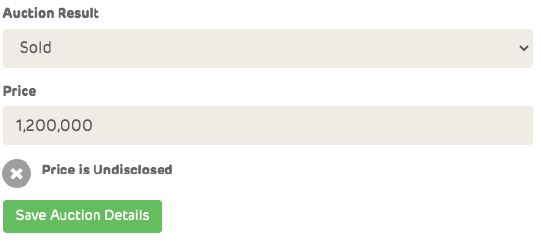
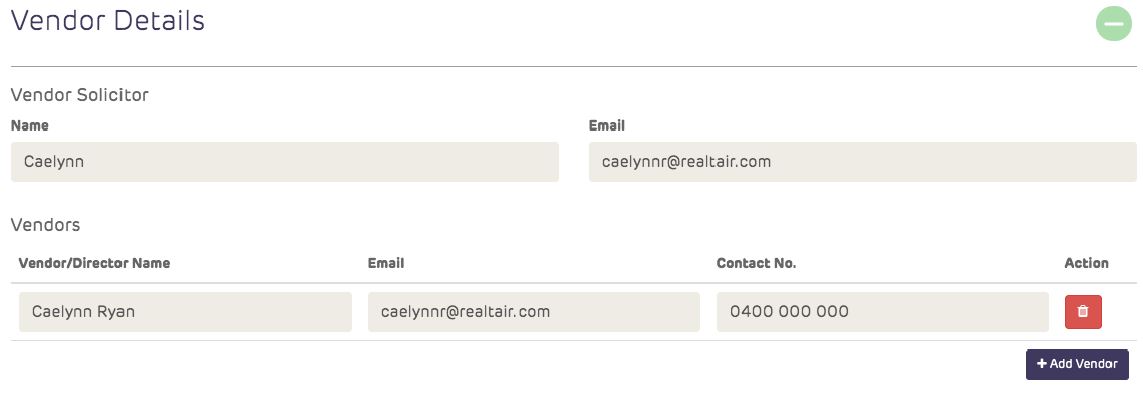
Complete all parties’ details on ‘Contracts & Vendors’ tab.
- add Vendor’s name as per Contract
- add individual Vendor’s details with contact email
Assign ‘Winning Bidder’ choose from list of registered bidders.
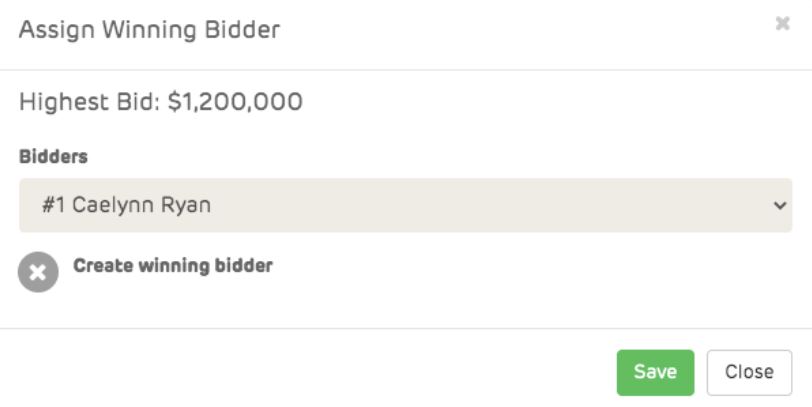
Or
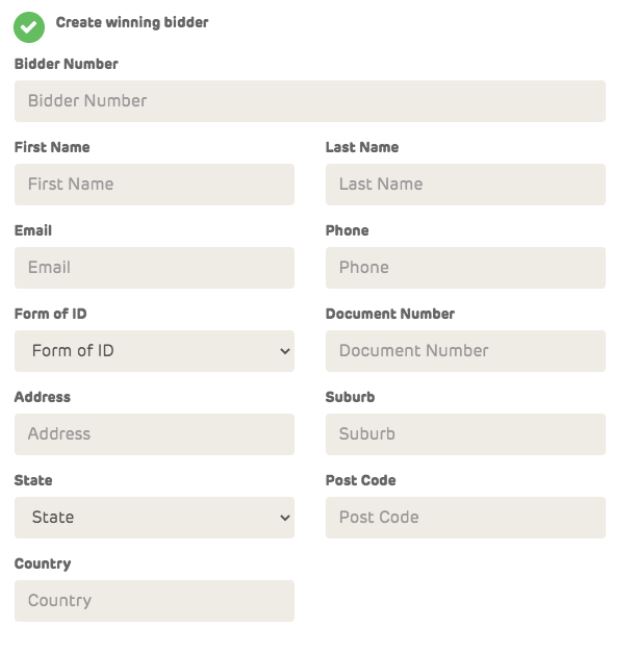
‘Create Winning Bidder’ if bidders registered manually prior to auction.
This allows you to make a manual bidder a system user, and then register them onto the property as a full online registration.
Enter all of the buyer’s relevant details and have them agree to the same terms and conditions, provide solicitor details just as any other bidders who registered themselves did pre-auction.
The buyer or agent will then need to update the successful bidder’s registration and add in their solicitor details and any approved changes made by the vendors solicitors.
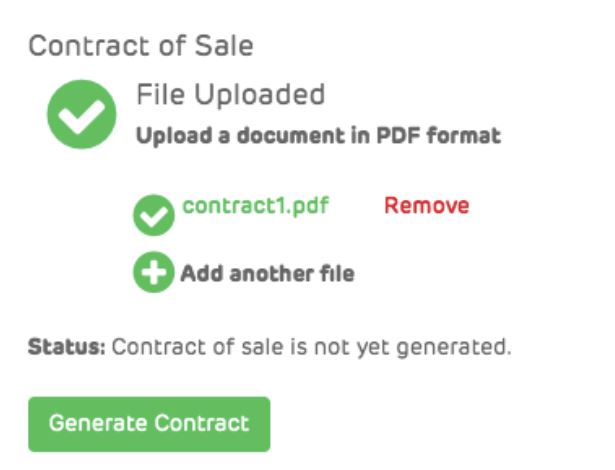
Upload Contract of Sale document (or you can upload contract on next step).
Click ‘Generate’ button to begin process of exchange.
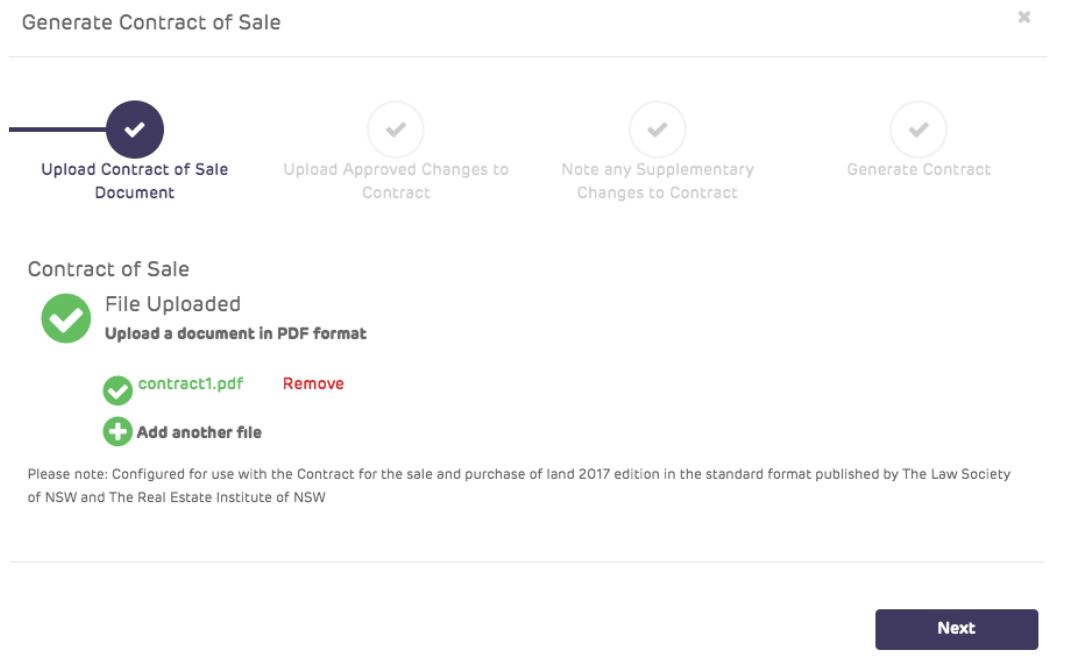
Step 1
Upload ‘Contract of Sale’ document (you can preview a previously uploaded document).
Large files can be uploaded in parts (max individual file size = 15MB).
* ensure that font page section is uploaded first.
Step 2
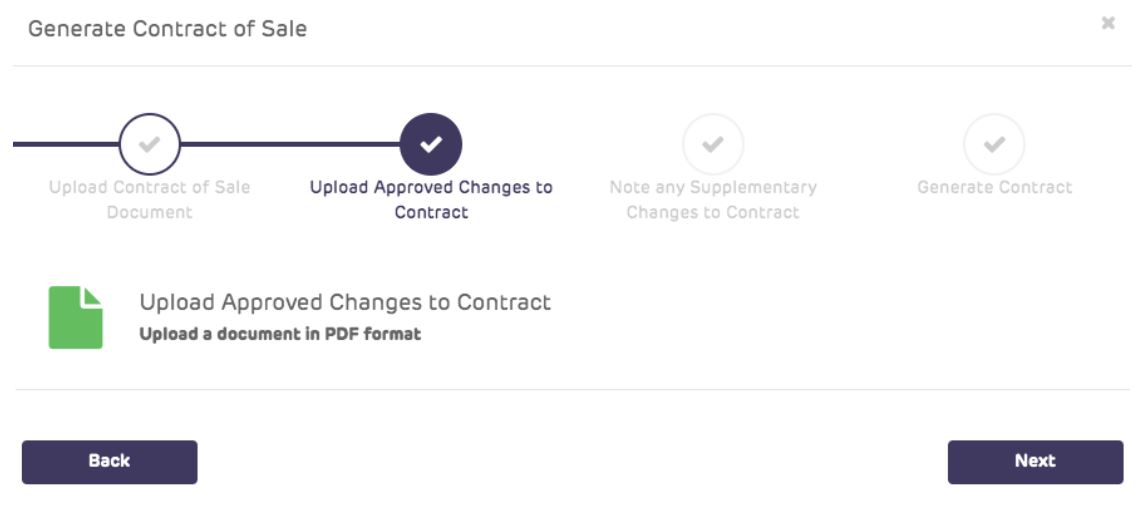
Upload any agreed ‘Approved Changes to Contract’ that the bidder has had approved prior to the auctions. If the buyer already uploaded these during their registration to bid then these will already be displayed here (you can preview a previously uploaded document).
Step 3
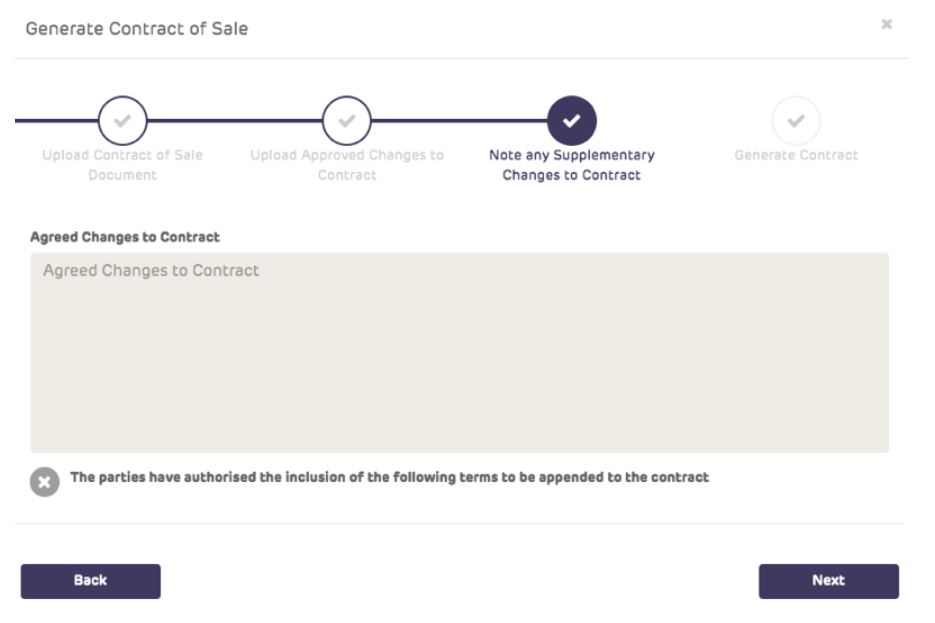
Make note of any ‘Supplementary Changes’ agreed to verbally by the parties at time of contract exchange. (these may be changes agreed between the parties without solicitor intervention).
Step 4
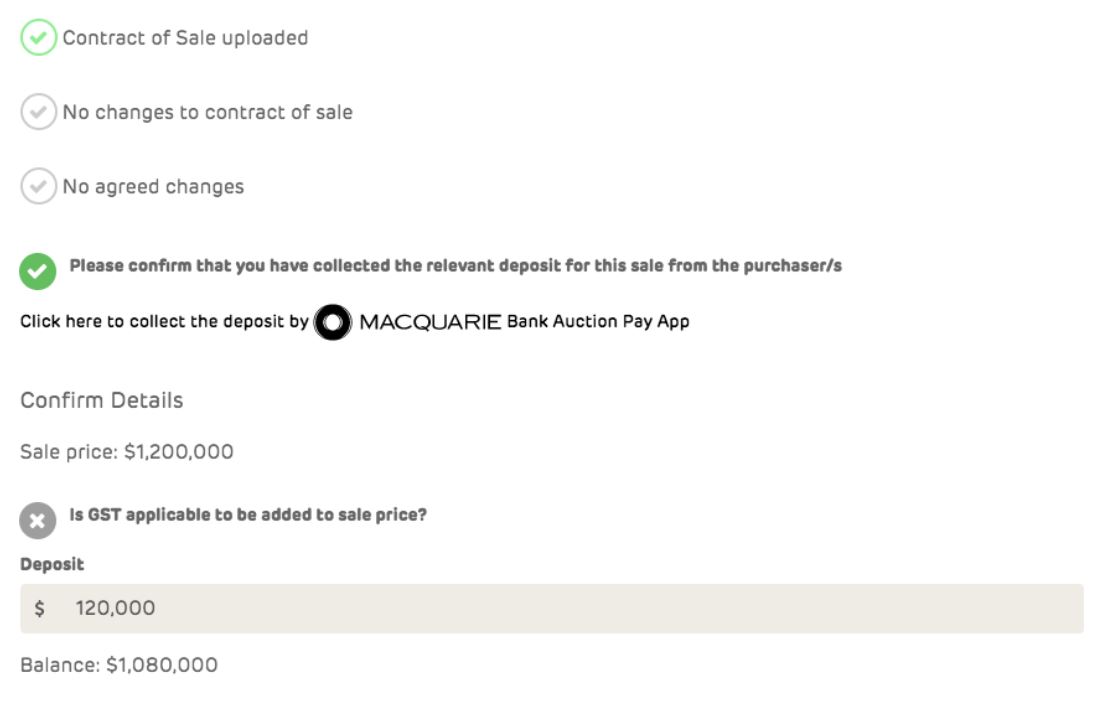
Confirm you have received deposit from buyer
Assign how each party will be signing the contract ‘In Person’ on the tablet you are currently using, or ‘By Email’ if they are absentee.
Enter the Deposit amount
If the agent is a Macquarie Trust account holder and is registered for the Macquarie AuctionPay app then they can complete that request here from in-person buyers.
Click ‘Generate Contract’ button to create document to be signed in Realtair Sign.
Step 5
Click ‘prepare and sign contract’

Go through the document information section and make sure all of the details are correct.
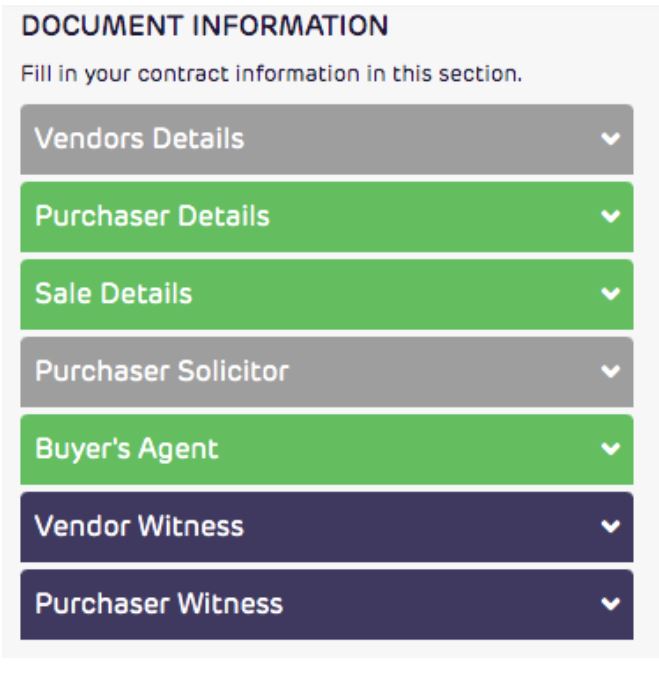
Add in any addition document fields onto the contract that are required by using the document fields section.
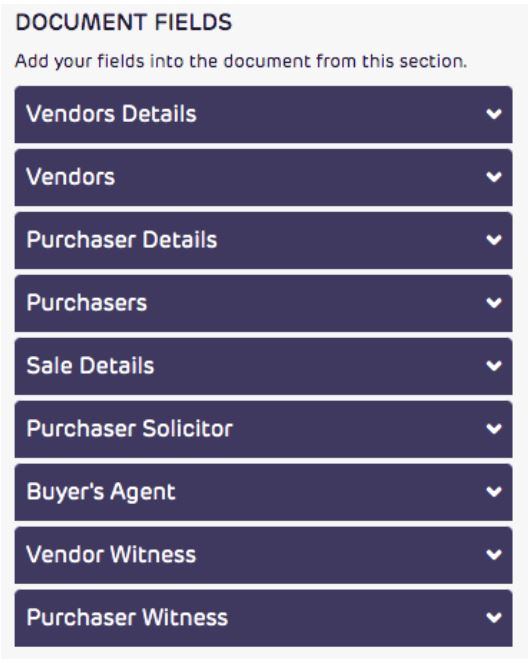
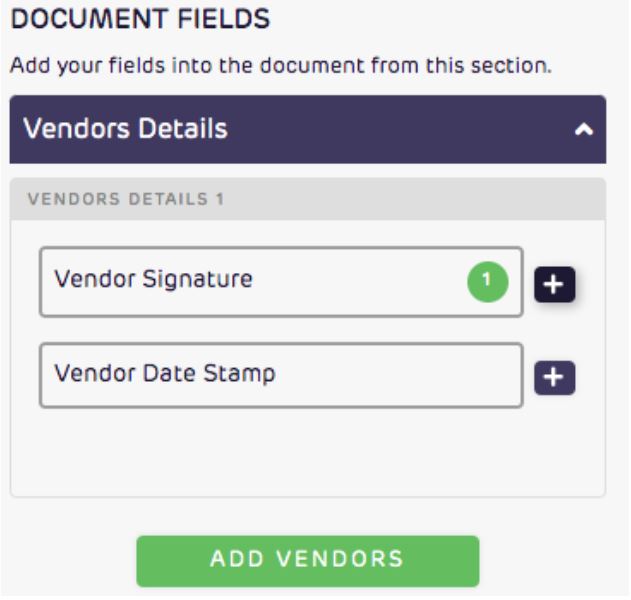
To use this section, open up what you are wanting to use. Click on the plus and then click on the screen to drop this option in.
Click save in the top right corner
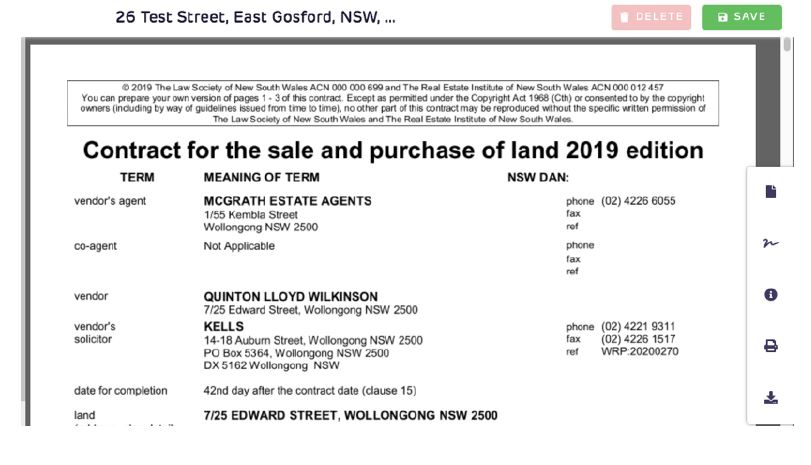
You now need to select whether the vendor/purchaser will be signing in person or signing remotely.
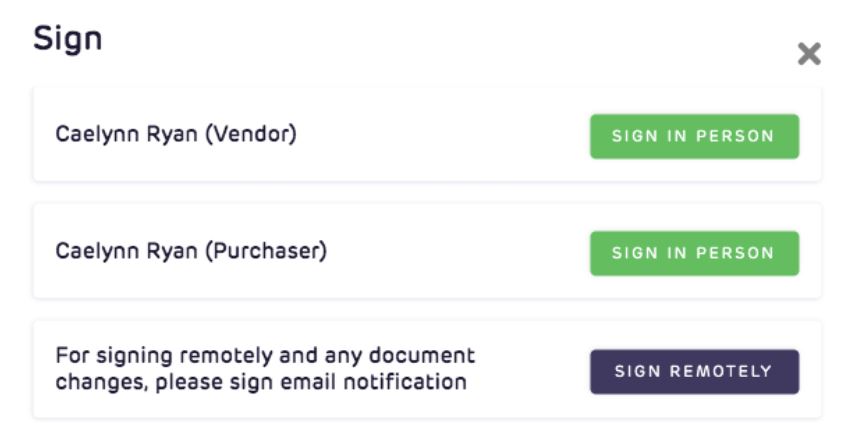
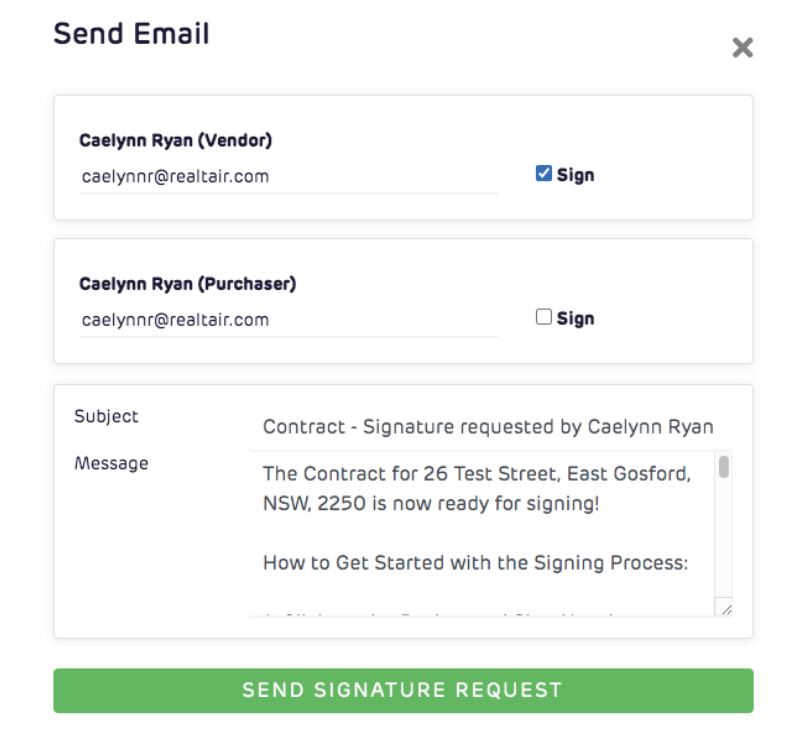
Sign remotely
Click sign remotely and then tick who you would like to send for signing and click send signature request.
They will receive a copy of the contract where they can sign and complete the contract.
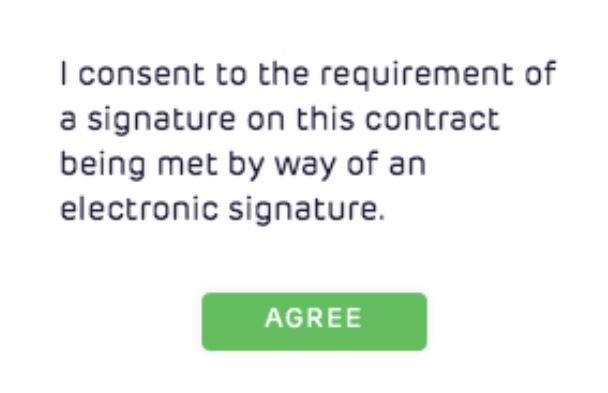
Sign in person
Click on the sign in person option for the party that is signing the document. The signing when then need to agree to signing the document electronically.
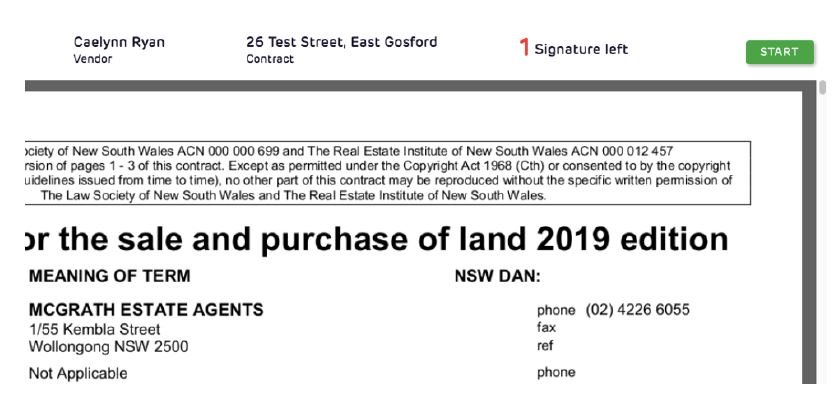
Click start in the top right corner. It will then take you to your first signature box.
Click in the box and select whether you would like to draw your signature or type it and click sign.
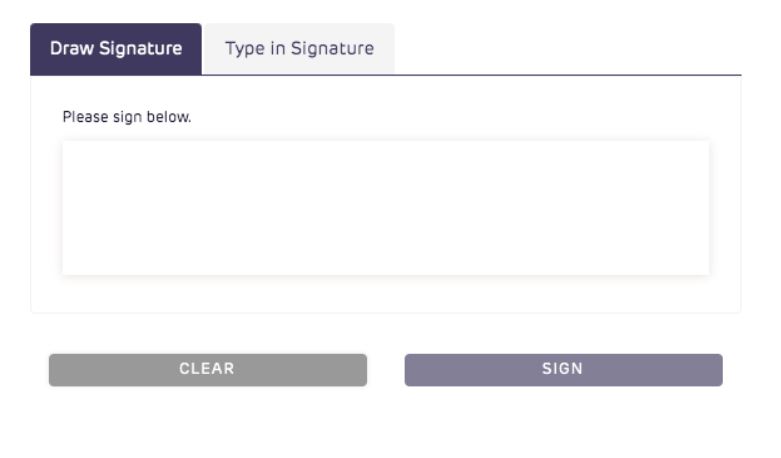
Once signed click finish in the top right corner.
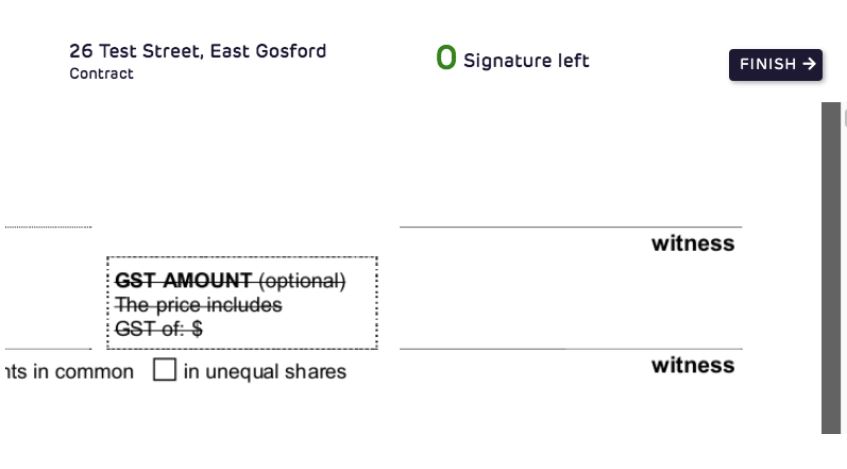
Once all parties have signed the contract you will then be able to exchange by clicking the exchange button in the top right corner.
You will then need to confirm that you are about to exchange this contract once selected.
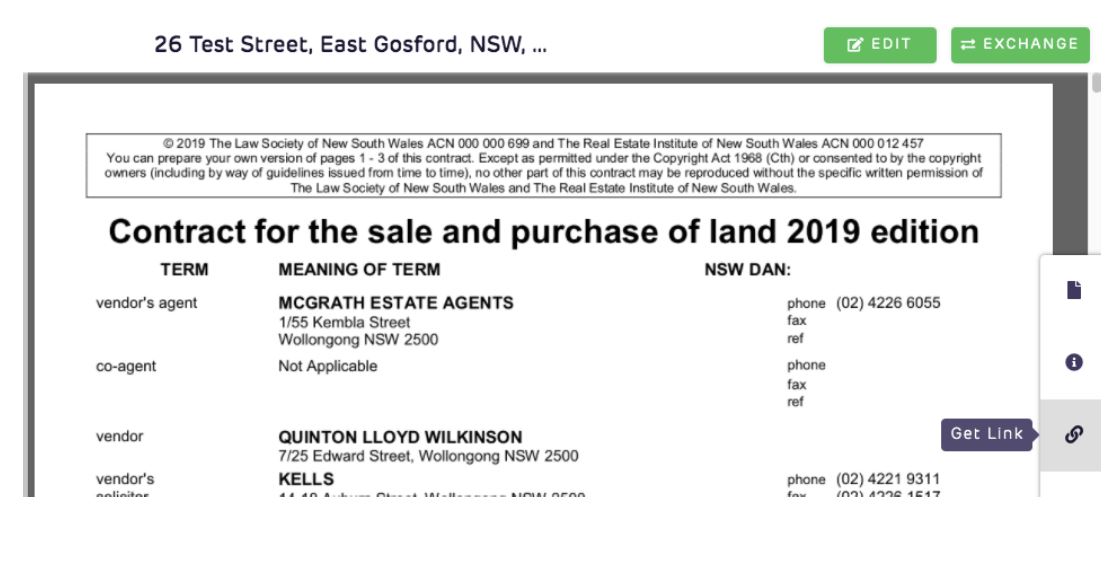
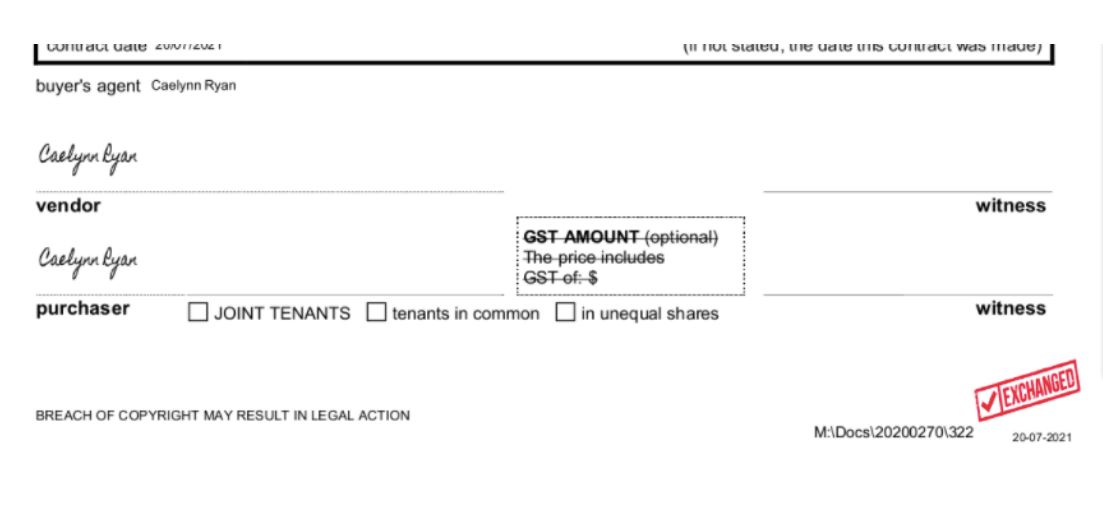
When the contract has been exchanged in will input an exchange stamp on the front page of the contract and the contract date.
All parties who have signed the contract will receive a signed copy to their email address.
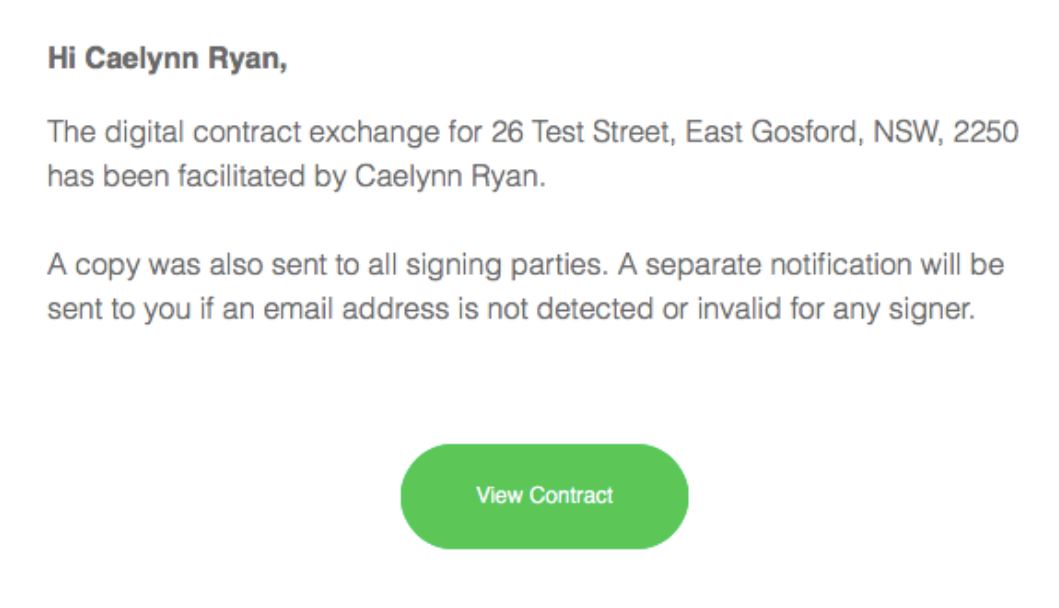
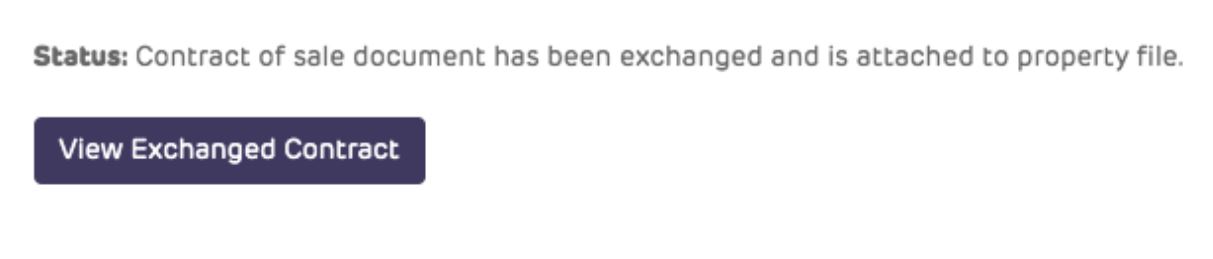
Now when you back to AuctionNow you will be able to view the PDF version of the exchanged contract.
AuctionNow Support
For Assitance:
For Auction booking support please do not hesitate to reach out the the McGrath Auctions Department for assistance.